Use the registry
ToolHive includes a built-in registry of MCP servers with verified configurations that meet a minimum quality standard, allowing you to discover and deploy high-quality tools effortlessly. You can browse the registry, select servers, and run them securely through the user interface.
You can also configure ToolHive to use a custom registry instead. This is useful for organizations that want to maintain their own private registry of MCP servers.
Find MCP servers
The ToolHive interface includes a dedicated Registry section in the main menu. This section lets you explore the various MCP servers available in either the built-in or custom registry.
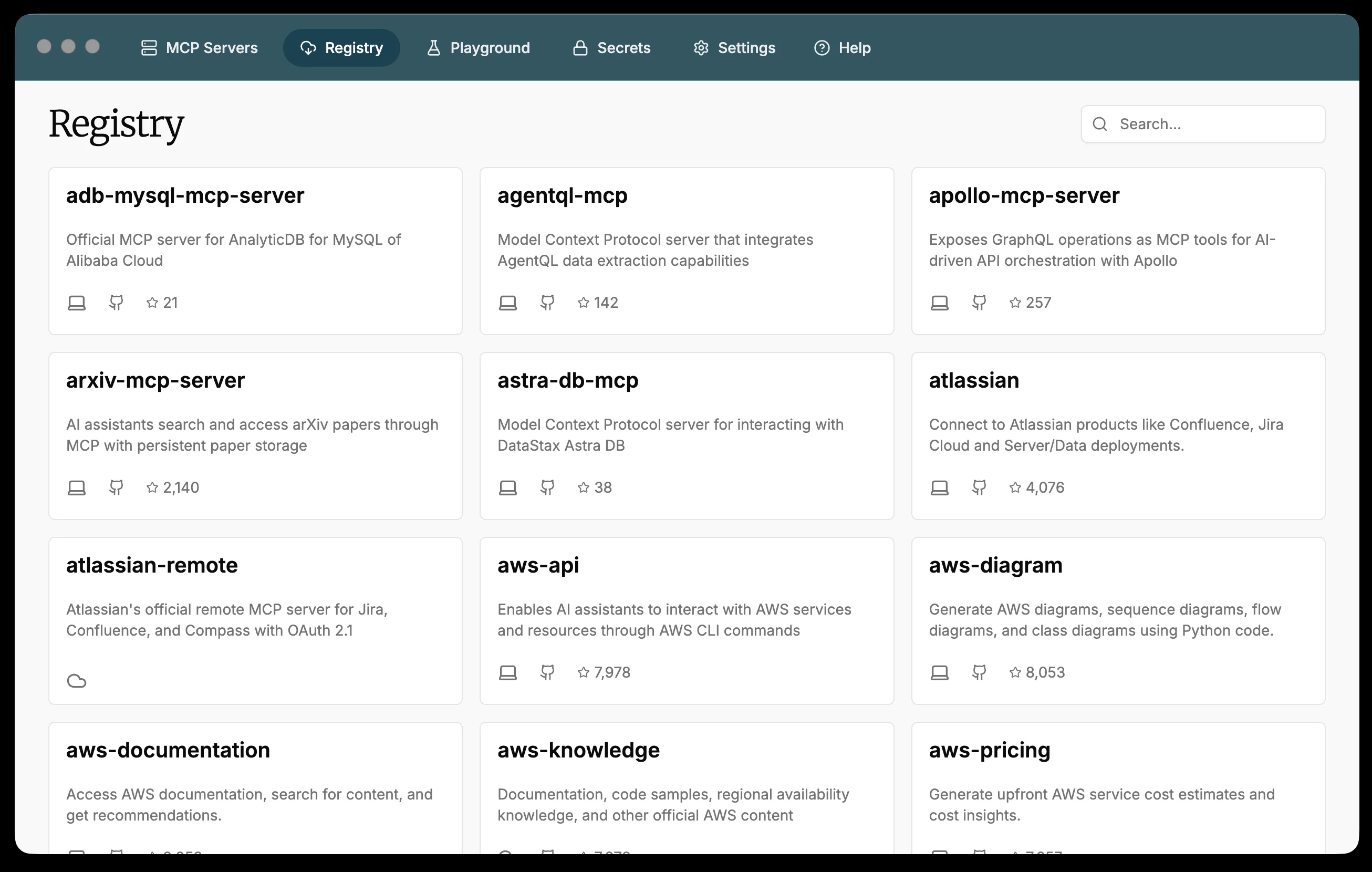
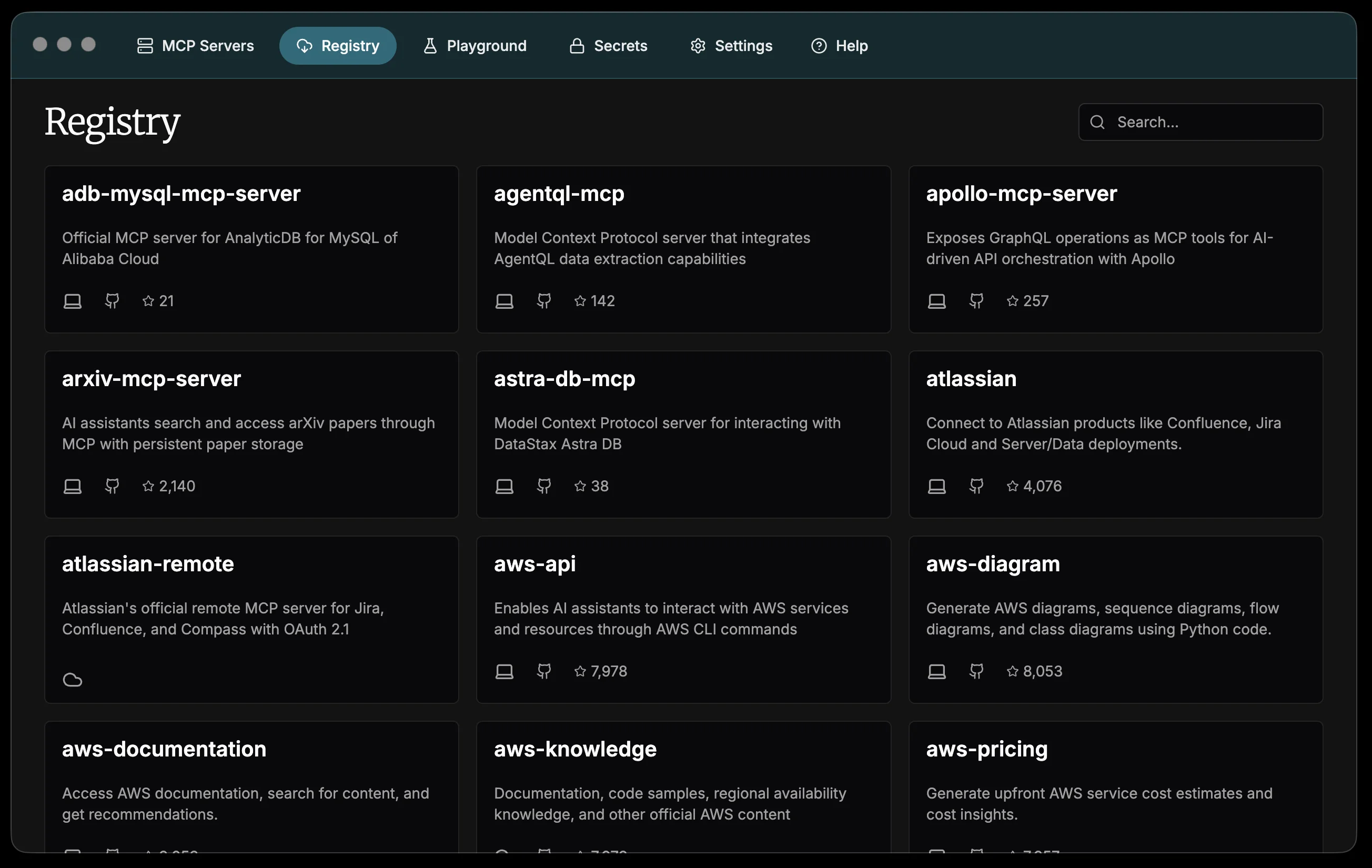
The registry interface displays a list of available servers. You can browse through the list, use search functionality, and click on any server to view detailed information before installing it.
View server details
Click on any server in the registry to view detailed information including:
- Server name and description: Full description of what the server does
- Tier badge: Shows whether the server is Official or Community
- Transport type: Shows the communication method (e.g., stdio)
- Popularity: Star count and download statistics
- Provenance: Security verification status (e.g., "Provenance signed by Sigstore")
- Tools listed: Names of all available tools the server provides
- Action buttons: Install server and GitHub (if repository available)
This detailed view helps you understand the server's purpose and capabilities before adding it to your ToolHive installation.
Registry settings
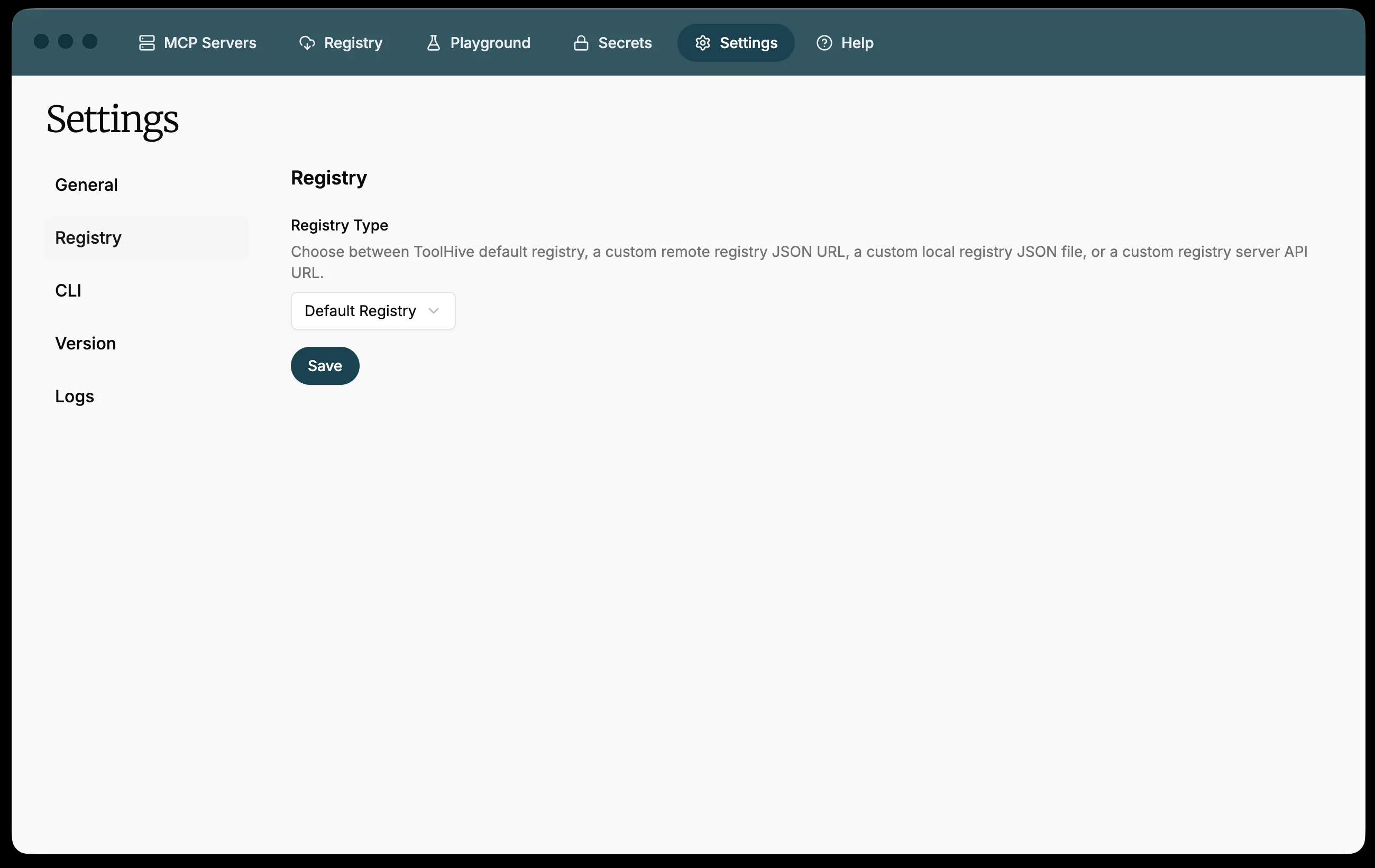
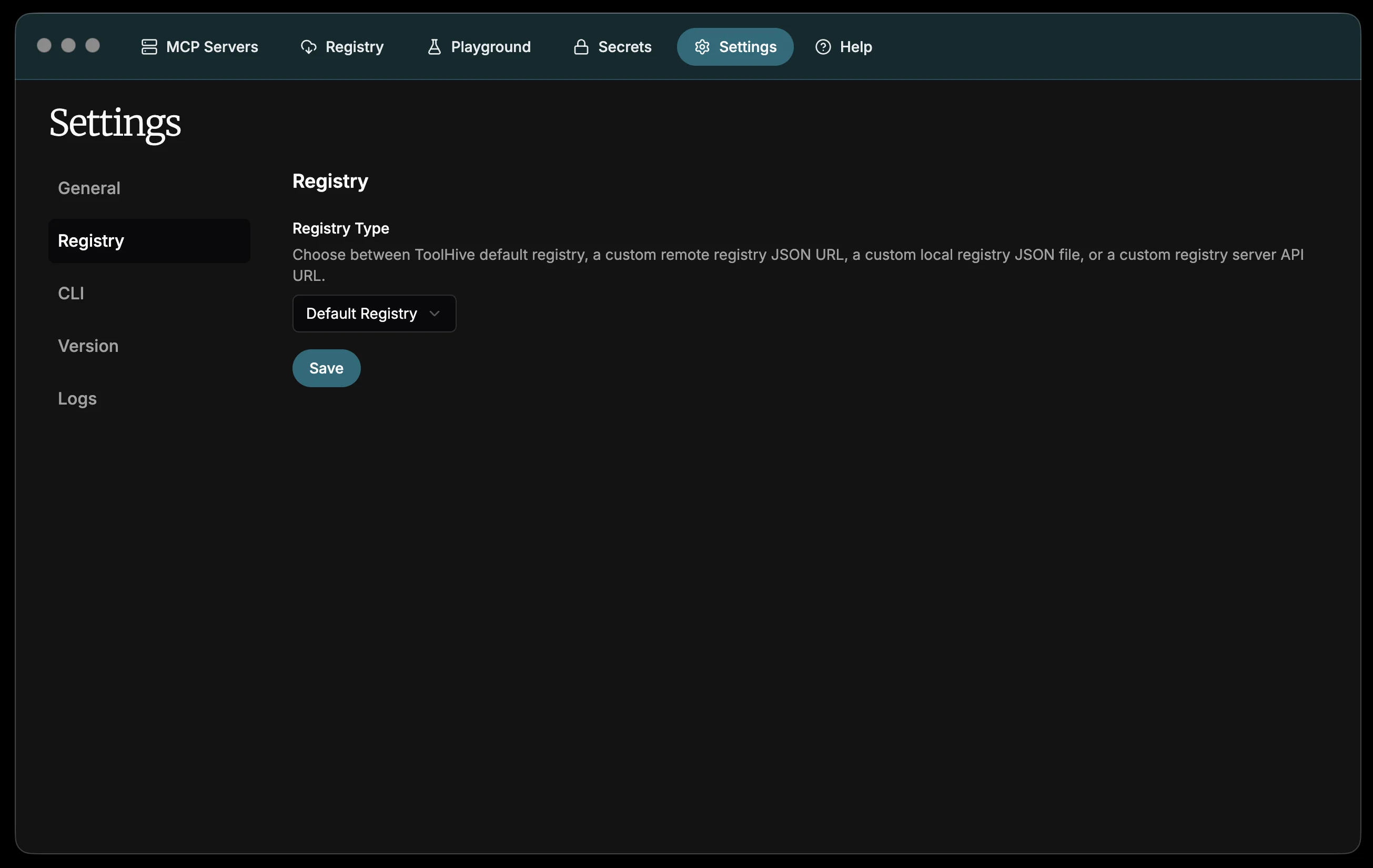
To configure your registry, ToolHive provides a dedicated Registry settings section in Settings → Registry with four options:
- Default Registry - Use ToolHive's built-in verified registry
- Remote Registry (JSON URL) - Specify a URL pointing to a static JSON registry file hosted on a web server
- Local Registry (JSON File Path) - Specify a local file path to a JSON registry file on your system
- Registry Server API - Connect to a ToolHive Registry Server endpoint with optional OIDC authentication
When you select Local Registry (JSON File Path), a Registry File Path
field appears where you provide the absolute path to your local JSON registry
file (for example: /path/myregistry/db.json).
When you select Registry Server API, a Registry Server API URL field
appears where you provide the URL of your Registry Server endpoint (for example:
https://registry.example.com:8080/registry/default). If your Registry Server
requires authentication, expand the Authenticate with your OIDC provider
section and enter the following fields:
- Client ID - The OAuth client ID registered with your identity provider
- Issuer URL - The OIDC issuer URL for your identity provider (for example:
https://accounts.example.com)
After you save, ToolHive initiates the OAuth login flow with your OIDC provider.
The Registry Server API option allows private IP addresses and HTTP connections, so you can use it with a locally hosted Registry Server during development.
Click Save to apply your configuration.
For detailed information on creating a custom registry, see the custom registry tutorial.
Next steps
After exploring the registry and finding servers you want to use:
- Install servers: Click on servers from the registry to install and configure them for your environment
- Customize tools: Selectively enable or disable tools from installed registry servers to create focused tool sets
- Manage running servers: Use the MCP Servers section to start, stop, and monitor your installed servers
- Create custom registries: Set up your own private registry for organization-specific servers
Related information
- Install ToolHive UI - Get started with ToolHive
- Run MCP servers - Install and manage servers from the registry
- Custom registry tutorial - Create your own MCP server registry
- Registry criteria - Quality standards for built-in registry servers